
⭕ Circle Calculator
Calculate diameter, circumference, and area
Mastering Geometry: Your Complete Guide to Using the Circle Area Calculator
Calculating the space inside a circle shouldn’t feel like a high-stakes math exam. Whether you are a homeowner figuring out how much sod you need for a round garden patch or a student double-checking homework answers, having the right digital tool makes all the difference. That is exactly where our circle area calculator shines. It takes the guesswork out of geometry, providing you with precise measurements instantly. Instead of scribbling numbers on a napkin or trying to recall formulas from high school, you can rely on a streamlined interface designed for everyday users.
This guide explores every nook and cranny of the tool. We will walk through exactly how the interface looks, how to enter your data, and how to interpret the results. By the end, you will see why this calculator is an essential utility for anyone needing quick geometric answers.
Why Use a Digital Circle Area Calculator?
Most of us encounter circles more often than we realize. From dining tables and swimming pools to architectural designs and circular rugs, these shapes are everywhere. However, figuring out the internal space—or area—of these shapes is not as intuitive as measuring a square or rectangle. You cannot just multiply length by width. This complexity is the primary reason people turn to a circle area calculator.
Using a digital tool eliminates human error. When you calculate circle area manually, a simple slip of the decimal point or a rounding error with Pi can throw off your entire project. If you are buying expensive materials like granite for a circular countertop, that mistake could cost hundreds of dollars. The calculator handles the heavy lifting, ensuring accuracy every single time. It is about efficiency, precision, and peace of mind.
Furthermore, a dedicated circle area calculator often provides more than just the area. It helps you visualize the relationship between the radius, diameter, and circumference. It transforms abstract numbers into concrete data you can use immediately. This is not about cheating on a math test; it is about leveraging technology to solve real-world problems faster.
Getting Started: The User Interface
When you first load the circle area calculator, you will notice a clean, distraction-free design. We prioritize usability, ensuring that even someone with zero technical background can navigate the tool immediately. The layout is divided into three primary sections: the Input Field, the Action Button, and the Results Display.
The top section is where your journey begins. You will see clear labels asking for specific dimensions. The beauty of this tool is its flexibility. You don’t always have the radius on hand; sometimes you only know the width across the center. The interface anticipates this. You will find a dropdown menu or toggle switch that allows you to select your input type: Radius or Diameter. This small feature saves you from having to do mental math before even using the tool.
Beneath the input fields, the design remains uncluttered. There are no confusing advertisements or flashing banners distracting you from your task. The focus is entirely on the calculation. This user-centric design ensures that whether you are on a desktop computer in an office or using a smartphone at a construction site, the circle area calculator is accessible and easy to read.
Step-by-Step: How to Calculate Circle Area
Let’s walk through the actual process of using the tool. It is designed to be a linear, intuitive experience.
Step 1: Select Your Measurement Unit
Before you type a single number, look for the unit selector. This is crucial. A circle with a radius of 5 inches is vastly different from one with a radius of 5 meters. The circle area calculator typically defaults to standard units, but you can easily switch between metric (millimeters, centimeters, meters) and imperial (inches, feet, yards). Selecting the correct unit ensures that your final result matches the scale of your project.
Step 2: Choose Your Input Method
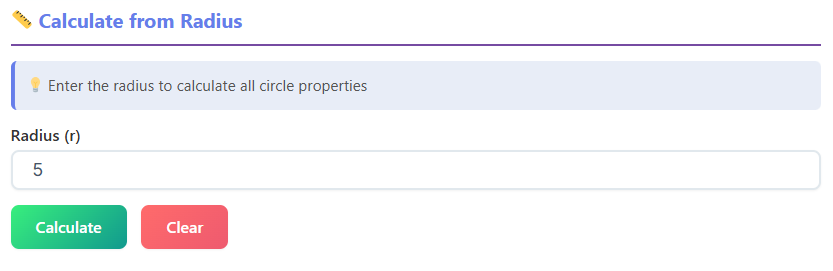
As mentioned earlier, you need to tell the calculator what information you currently have.
- Radius: This is the distance from the absolute center of the circle to the edge.
- Diameter: This is the distance from one edge of the circle to the opposite edge, passing directly through the center.
If you are measuring a physical object, like a pipe or a table, measuring the diameter is usually easier than guessing where the center point is. Once you measure, select the corresponding option on the screen.
Step 3: Enter the Value
Click into the text box and type your number. The field accepts decimals, so if your measurement is precise—say, 12.5 centimeters—you can enter it exactly. There is no need to round up or down beforehand; the tool handles precise figures effortlessly.
Step 4: Click Calculate
Once your data is entered, press the distinct “Calculate” button. This triggers the process. Instantly, the tool processes your input. There is no loading screen or wait time. The transition from input to result is seamless.
Understanding the Results Section
After hitting the button, the screen updates to show the Results Display. This is often highlighted in a different color or boxed off to draw your eye. The primary output, of course, is the total area. This figure is displayed clearly, often in bold text, accompanied by the squared unit of measurement (e.g., “sq ft” or “m²”).
However, a robust circle area calculator often gives you more context. Alongside the area, you might see the calculated circumference. This is incredibly useful if you need to know the distance around the edge—perhaps you are buying fencing for that circular garden. This dual functionality means you don’t have to visit a separate page to calculate circumference of a circle; it is presented right there as a bonus piece of data.
You might also see a visual representation. Some versions of the tool generate a simple graphic of a circle, labeling the radius and diameter based on your inputs. This visual confirmation helps you verify that you entered the right numbers. If the graphic looks disproportionate or the numbers seem off, it serves as a quick sanity check.
Deep Dive: The Input Flexibility
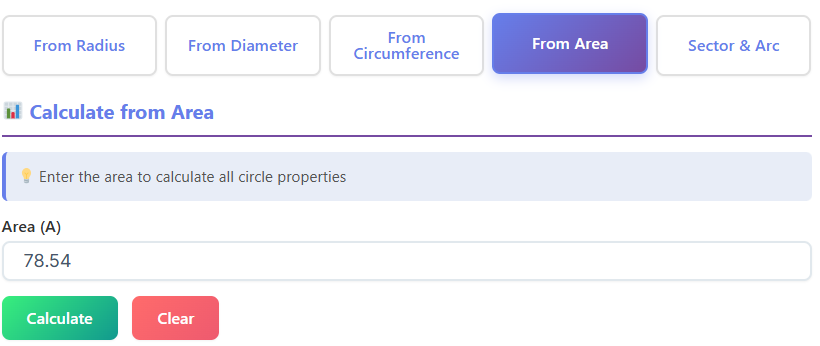
Let’s talk more about why the choice between radius and diameter matters. In many real-world scenarios, you cannot physically measure the radius. Imagine you are trying to find the area of a large, round swimming pool. You cannot easily swim to the exact center and hold a tape measure to the edge. However, you can stretch a tape measure across the whole pool to get the diameter.
By allowing you to input the diameter directly, the circle area calculator saves you a step. You don’t have to divide by two in your head. It might seem like a small convenience, but when you are juggling multiple measurements for a renovation project, every saved step reduces the mental load.
Conversely, sometimes you might be working from a blueprint that labels the radius. In this case, you simply switch the input mode. This flexibility is what makes the tool “expert” yet “accessible.” It adapts to the data you have, rather than forcing you to adapt your data to the tool.
Real-World Use Case: Home Gardening
Let’s apply this to a realistic scenario. Imagine you are planning a circular flower bed in your backyard. You want to cover the soil with mulch. Garden centers sell mulch by the cubic foot, but first, you need the square footage of the bed.
You measure the garden and find it is 10 feet across (diameter).
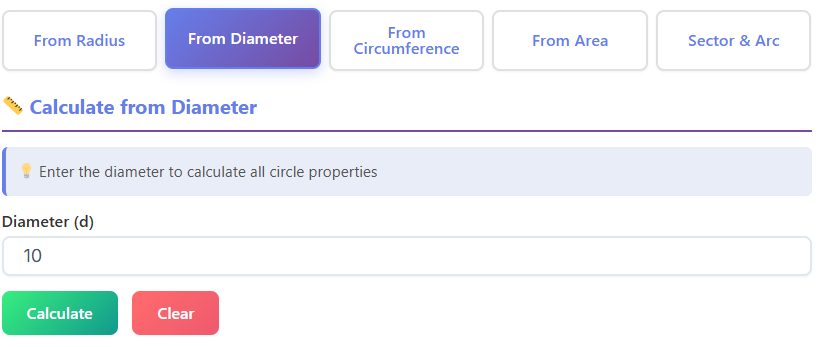
- Open the circle area calculator.
- Select “Feet” as your unit.
- Choose “Diameter” as your input mode.
- Enter “10”.
- Click Calculate.
The tool immediately tells you the area is roughly 78.5 square feet. Now you know exactly how much ground you need to cover. Without the tool, you might guess, buy too much mulch, and waste money—or buy too little and have to make a second trip to the store.
While you are planning your garden and thinking about physical activity, you might also be interested in how your body uses energy during gardening. You can check out our BMR Calculator to see how many calories your body burns at rest, which helps in planning your nutritional needs for active days.
Real-World Use Case: Interior Design
Here is another example. You are buying a round rug for your living room. You need to make sure it covers enough floor space to anchor your furniture, but not so much that it hits the walls. The rug description says it has a 6-foot radius.
Is that too big? It is hard to visualize “6-foot radius” in terms of floor coverage.
- Open the circle area calculator.
- Select “Radius”.
- Enter “6”.
- Click Calculate.
The result shows approximately 113 square feet. Now you can look at your room, perhaps measure out a 10×11 rectangle, and realize that a rug with a 6-foot radius is actually 12 feet wide! That might be way too big for your space. The calculator helped you visualize the scale of the object before you made a costly purchase.
Precision and Decimals
One of the subtle features of a high-quality circle area calculator is how it handles decimals. In construction and engineering, “close enough” often isn’t good enough. If you enter a radius of 4.567 meters, the tool doesn’t just round it to 5. It processes the exact figure.
The results section usually displays the answer to two or more decimal places. This level of precision allows professionals to use the tool for estimates. While it is not a replacement for CAD software in engineering, it is perfect for on-site estimations. The ability to trust the decimal precision means you can confidently order materials based on the tool’s output.
The Relationship Between Circumference and Area
While the primary job is to tell you the space inside the boundary, understanding the edge is helpful too. Many users who search for how to calculate area of circle dimensions often realize they also need the perimeter.
For instance, if you are making a round tablecloth, the area tells you how much fabric you need for the top. But if you want to sew lace trim around the edge, you need the circumference. Our tool provides this automatically. It bridges the gap. It essentially performs a conversion where you can understand the link from the boundary length to the internal space.
This is where the concept of circ to diameter becomes relevant essentially in reverse. By seeing both numbers generated from a single input, users start to intuitively understand how a wider diameter leads to a significantly larger circumference and an exponentially larger area.
Troubleshooting Common User Errors
Even with the best interface, mistakes happen. The most common error users make with a circle area calculator is mixing up radius and diameter.
If you accidentally enter the diameter value into the “Radius” field, your result will be four times larger than it should be. This is massive. If you are pouring concrete based on that number, you will have a disaster on your hands.
To help users avoid this, the tool often includes clear icons or diagrams next to the input fields. A line extending halfway across a circle icon denotes radius; a line going all the way across denotes diameter. Always take a split second to look at these visual cues before hitting calculate.
Another common issue is unit confusion. If you measure in inches but leave the calculator set to feet, the number you get will be mathematically correct for the input, but useless for your actual context. Always double-check that the dropdown menu matches your tape measure.
Comparing Digital Tools to Manual Calculation
Why not just do it by hand? You certainly can. But manual calculation requires remembering the constant Pi (3.14159…). Most people remember 3.14, but truncating Pi reduces accuracy. A digital circle area calculator uses a much more precise value of Pi in its backend processing, ensuring the result is closer to perfection than a calculation done with a rounded number on a piece of scratch paper.
Speed is the other factor. To calculate circle area manually involves squaring the radius and then multiplying. It’s a multi-step process. If you have to do this for five different circles, it becomes tedious. The digital tool reduces this to seconds. It frees up your mental energy for the creative or physical parts of your project.
Speaking of health and hydration during physical projects, if you are spending all day measuring and building, it’s vital to stay hydrated. Our Water Intake Calculator can help you determine exactly how much water you should be drinking based on your activity level.
Features for Students and Educators
While professionals love the speed, students benefit from the clarity. A circle area calculator is a fantastic way to check work. A student can attempt the problem on paper, then plug the numbers into the tool to see if they match.
If the numbers don’t match, the student knows they made a mistake. They can then toggle the inputs. Maybe they can try to calculate circumference of a circle using the tool to see if that part of their homework was correct. It serves as an instant feedback loop, accelerating the learning process.
The tool doesn’t do the homework for them—it validates it. By seeing the inputs and outputs clearly labeled, students reinforce the terminology of radius, diameter, and area.
Visualizing the Scale
Sometimes numbers are abstract. Seeing “500 square feet” might not mean much to you. Some advanced versions of the circle area calculator provide comparison examples. For instance, after calculating, it might say “This is approximately the size of a large two-car garage.”
These contextual clues are invaluable. They ground the mathematical result in reality. If you are calculating the area of a dinner plate and the result says it’s the size of a garage, you know you likely messed up your units (entering inches as feet, perhaps). These “sanity check” features are subtle but incredibly helpful for casual users.
The Mobile Experience
We know that many users aren’t sitting at a desk. You are at the hardware store, in the backyard, or on a job site. Therefore, the circle area calculator is fully optimized for mobile devices.
The buttons are large enough to tap with a thumb. The text fields zoom in slightly when selected so you can see what you are typing. The layout stacks vertically, so you don’t have to scroll horizontally to see the results. Whether you are on an iPhone or an Android, the experience is fluid and responsive. You have a powerful geometric tool right in your pocket.
Advanced Considerations: Circles within Circles
A common advanced scenario is finding the area of a ring (an annulus)—like the shape of a washer or a donut. While a standard circle area calculator calculates one solid circle, you can use it to solve this problem easily.
- Calculate the area of the outer circle (the total width).
- Note down the result.
- Calculate the area of the inner hole.
- Subtract the second number from the first.
By using the tool twice, you solve a complex geometry problem in moments. This versatility makes the single-function tool surprisingly powerful for complex shapes.
Accuracy and Rounding
When you calculate circle area, you often get a number with infinite decimal places because of Pi. The calculator has to make a decision on where to cut that number off.
Most tools round to two or four decimal places. This is a standard convention. It provides enough precision for construction (where 1/16th of an inch matters) and science (where milliliters matter), without overwhelming the user with a string of 20 digits.
However, if you need raw data, look for a “copy” button next to the result. This often copies the full, unrounded value to your clipboard, allowing you to paste it into a spreadsheet or another program for further analysis.
Integrating with Other Measurements
Projects rarely involve just one shape. You might have a rectangular patio with a semi-circle fire pit area. The circle area calculator handles the curved part. You calculate the full circle area, then simply divide the result by two on your phone’s calculator to get the semi-circle.
This modular approach to geometry—breaking complex shapes into squares and circles—is how pros work. The calculator is a specific tool for the curved parts of your world.
While you are managing these complex calculations, it’s interesting to note how different metrics affect our lives. Just as you monitor the dimensions of your home projects, monitoring your own health metrics is crucial. For a quick check-up on your cardiovascular baseline, you might want to visit our Heart Rate Calculator.
Conclusion
The circle area calculator is more than just a digital cheat sheet. It is a bridge between abstract geometric concepts and real-world application. It saves time, reduces material waste, and helps users visualize space accurately.
Whether you are inputting a radius to check a homework problem or measuring a diameter to pour concrete for a gazebo, the tool adapts to your needs. It handles the math of area of a circle so you don’t have to. It simplifies the relationship of circ to diameter, validates your manual work, and provides instant, accurate data.
Next time you are faced with a curved edge or a round space, don’t reach for the scratch paper. Open the circle area calculator, enter your dimensions, and move forward with your project with total confidence.
FAQs
What’s the difference between ‘radius’ and ‘diameter’ in the calculator?
The radius is the distance from the exact center of a circle to any point on its edge. The diameter is the distance from one edge of the circle to the opposite edge, passing straight through the center. In short, the diameter is always twice the length of the radius. Our circle area calculator lets you input whichever measurement you have, making your calculation easier.
How precise are the results from the circle area calculator?
The results are highly precise. Our tool uses a much more accurate value of Pi than the commonly used 3.14, and it processes the exact numbers you enter without premature rounding. The final answer is typically displayed to two or more decimal places, providing enough accuracy for professional projects, schoolwork, and home improvement plans.
Can I calculate the area of a semi-circle or a quarter-circle with this tool?
Yes, you can! First, use the circle area calculator to find the area of the full circle using its radius or diameter. Once you have the result, you can easily adapt it:
For a semi-circle (half a circle): Divide the total area by 2.
For a quarter-circle: Divide the total area by 4.