Time Addition/Subtraction
Duration Between Times
Time Unit Conversion
Master Your Schedule: The Ultimate Guide to Using Our Free Time Calculator
Introduction
We’ve all been there. You’re staring at a timesheet, trying to figure out exactly how many hours you worked between 8:30 AM and 5:15 PM, minus a 45-minute lunch break. Or maybe you are trying to add up three different video clips to see if they fit within a specific time limit. Doing this mental math is frustrating, prone to errors, and honestly, a waste of your mental energy.
Time isn't decimal, which makes it tricky. You can’t just punch "4.30 + 1.45" into a standard calculator and expect the right answer because 60 minutes doesn't equal 100. That’s exactly why a specialized tool is necessary.
This is where our free time calculator comes in. It is designed to handle the unique math of hours, minutes, and seconds so you don’t have to. Whether you need a reliable calculator for work to track billable hours or you just want to know when your laundry will be done, this tool simplifies the process. It eliminates the guesswork, ensuring that when you search for things like "calculator hours" or try to figure out complex timeframes, you get an instant, accurate result.
In this guide, we will walk you through exactly how to use this tool. We’ll cover everything from adding up minutes to calculating the duration between two specific times.
A First Look: The Header and Hero Section
When you first load the page, you are greeted with a clean, no-nonsense interface. The design prioritizes speed and clarity because usually, when you need a time calculator, you need the answer now.
At the top, you’ll likely notice a distinct Stopwatch icon ⏱️ next to the main title: “Time Calculator”. Immediately below this, there is a helpful subtitle that sets the stage for what you can do here: adding, subtracting, calculating duration, and converting time units.
The first impression is professional and uncluttered. There are no distracting ads popping up over the input fields or confusing menus to navigate. Everything is laid out in a single view, allowing you to scroll through the different functions. It feels like a premium utility app, designed to be a trusty sidekick for your daily planning.
Mastering the Time Addition and Subtraction Section
The first major section of the free time calculator is dedicated to modifying a specific time. This is perfect for scenarios where you have a starting point and need to adjust it by a specific duration.
How the Input Fields Work
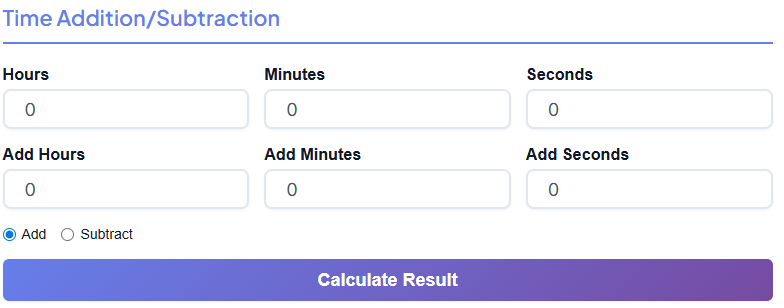
You will see a row of input fields labeled clearly for Hours, Minutes, and Seconds.
This is your starting block. Let's say you have a project that starts at a specific timestamp, or perhaps you just have a base duration, like 2 hours and 15 minutes. You enter those numbers here.
Below that, you have the modifier fields: Add Hours, Add Minutes, and Add Seconds. This is where the magic happens. You aren't limited to simple round numbers. If you need to add specifically 3 hours, 12 minutes, and 45 seconds to your base time, the interface handles it effortlessly.
Choosing Your Operation
Between the input fields, you’ll see radio buttons for Add and Subtract.
- Add: Select this if you are accumulating time. For example, if you are calculating total flight time with a layover.
- Subtract: This is incredibly useful for countdowns or working backward. If you know a task must be finished by 5:00 PM and it takes 4 hours, you can subtract to find your start time.
Getting Your Result
Once you’ve entered your numbers—perhaps you are trying to solve 45+45+45 minutes to see the total duration—you simply click the “Calculate Result” button.
The Result Time display box instantly updates. It doesn't just give you a raw number; it formats it correctly. If you add 90 minutes to 1 hour, it won't say "1 hour 90 minutes." It intelligently rolls over to read "2 hours 30 minutes." This smart formatting is what makes it a superior calculator for work compared to a standard calculator app on your phone.
Calculating Duration Between Two Times
Scroll down a bit further, and you find perhaps the most popular feature: the Duration Calculator. This is the answer to the classic question: "If I work from 9 to 4 how many hours is that?"
The Start and End Inputs
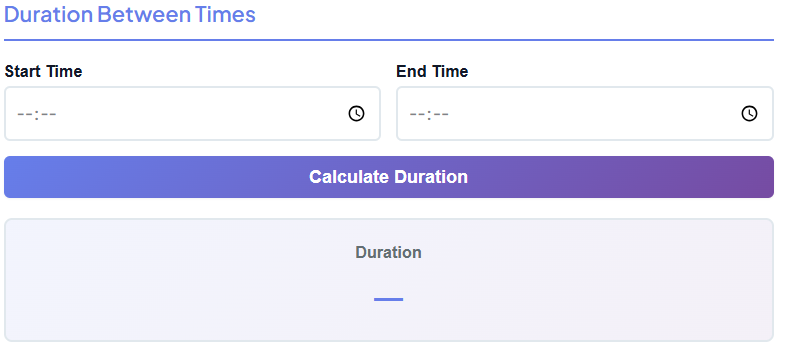
The interface here is deceptively simple. You have a Start Time input and an End Time input.
Depending on your settings, these might allow you to select AM/PM or use a 24-hour clock. The inputs are user-friendly; you can type the numbers or often use small arrow keys to toggle the time up and down.
Why This Matters
This section is a lifesaver for payroll and timesheets. Calculating a work shift duration manually is annoying because of the 12-hour cycle. If you start at 10:00 AM and finish at 6:30 PM, doing the math in your head involves "crossing the noon threshold."
With the free time calculator, you just plug in 10:00 AM as the start and 6:30 PM as the end.
The Duration Result
Click Calculate Duration, and the result box shows you the exact elapsed time in hours, minutes, and seconds. It strips away the confusion. You don't need to worry about military time conversion or counting on your fingers. It gives you a clean "8 hours 30 minutes" (or whatever the actual duration is).
This is also helpful for break time calculations. If you clock out at 12:15 and clock back in at 1:05, you can quickly check if you stayed within your allotted break window.
Time Unit Conversion: Seconds, Minutes, Hours, Days
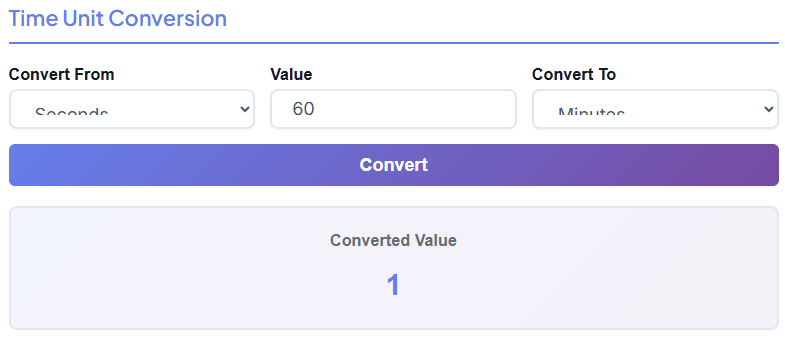
The third distinct section of the tool handles conversions. Have you ever wondered how many seconds are in a day, or how many hours are in 3 weeks?
The Dropdown Experience
Here, you will find a Convert From dropdown menu. You can select standard units like seconds, minutes, hours, or days. Next to it is a Value input field where you type the number you want to convert.
On the other side, there is a Convert To dropdown. This allows for total flexibility. You aren't stuck converting just minutes to hours. You could convert days directly into seconds if you wanted to.
Instant Conversion
After setting up your conversion parameters—say, converting 5000 seconds into hours—you hit the Convert button.
The Converted Value result box displays the answer immediately. This helps users quickly convert time units without manual math, which usually involves multiplying or dividing by 60 or 24 repeatedly. It’s a handy feature for students doing physics homework or project managers breaking down huge project estimates into manageable hourly chunks.
Buttons & User Experience
One thing that stands out about this free time calculator is the attention to User Experience (UX). It doesn't feel like a dusty old utility site from the early 2000s.
Action Buttons
The buttons—Calculate Result, Calculate Duration, and Convert—are designed to be noticed. They are typically large, often featuring a subtle gradient that makes them look clickable and modern. They have a satisfying visual weight to them. When you click, the reaction is instant. There is no page reloading or waiting for a server to think.
Visual Clarity
The result boxes are distinct from the input fields. They usually have a different background color or a bold border to draw your eye. This visual hierarchy means you never have to hunt for your answer.
Beginner-Friendly Layout
You don't need a manual to use this. The flow is top-to-bottom, logical, and labeled in plain English. If you need to count date durations or time specific tasks, the layout guides you to the right section naturally. It is built for fast calculations, respecting the user's time.
Real-Life Use Examples
To truly appreciate the utility of this tool, let's look at how it fits into daily life.
The Office Employee and the Timesheet
Sarah works flexible hours. She came in at 8:15 AM, took a lunch break from 12:30 PM to 1:15 PM, and left at 5:45 PM. At the end of the week, she needs to fill out her timesheet.
Using the free time calculator, she uses the Duration section.
First, she calculates the morning block (8:15 to 12:30). Then she calculates the afternoon block (1:15 to 5:45). Finally, she uses the Addition section to sum those two durations together. What could have been a headache of minute-math is solved in seconds, giving her accurate calculator hours for her report.
If she needs to know the number of days between her pay periods, she might also use a related tool.
📅 Days Between Dates
Calculate exact days between two dates
Open Calculator →
The Freelance Video Editor
Mark is editing a documentary. He has three clips he wants to string together for an intro sequence.
- Clip A: 2 minutes 14 seconds
- Clip B: 1 minute 58 seconds
- Clip C: 3 minutes 45 seconds
He needs to know if the total exceeds 8 minutes. He opens the free time calculator and uses the Addition section. He enters 2m 14s, then adds 1m 58s. He takes that result and adds 3m 45s. He gets the precise total instantly, ensuring his pacing is perfect without grabbing a pen and paper.
For planning his editing schedule around holidays, he often checks:
⏰ Working Days Calculator
Calculate business days excluding weekends
Open Calculator →
The Student Studying for Finals
Elena is using the Pomodoro technique. She wants to do four study sessions of 45 minutes each, with 10-minute breaks in between. She wants to know exactly when she will finish if she starts at 4:00 PM.
She uses the tool to calculate 45+45+45 minutes plus the breaks. She adds the total duration to her start time of 4:00 PM using the Addition section. Now she knows exactly when she can meet her friends for dinner.
To organize her study plan by academic weeks, she finds this tool helpful:
📊 Week Number Calculator
Find week number for any date
Open Calculator →
Who Should Use This Tool?
This tool is versatile, but specific groups will find it indispensable.
Office Workers and HR Teams
For anyone dealing with payroll, shifts, or attendance, this is an essential calculator for work. It prevents payroll disputes by providing accurate duration counts. HR teams can use it to verify employee hours quickly.
Freelancers and Contractors
When you bill by the hour, accuracy is money. You cannot afford to guess. This tool helps you sum up various tasks to invoice clients correctly. If you track time manually, this tool is your best friend for end-of-month invoicing.
Students and Educators
Time management is key to academic success. Whether it's calculating how long a test lasts or managing study blocks, this tool removes the friction of planning.
Event Planners
Running an event requires precise timing. If a speech lasts 15 minutes, followed by a 5-minute transition and a 45-minute panel, when does the lunch break start? This calculator handles that schedule stacking effortlessly.
Conclusion
Time is our most valuable resource, yet calculating it is often unnecessarily difficult. The mental gymnastics required to add 45 minutes to 2:55 PM or to figure out the duration of a shift from 9 to 4 how many hours are simply not worth the effort when a tool like this exists.
Our free time calculator is designed to be the ultimate utility for your browser. It is fast, free, and incredibly easy to use. It handles the quirks of the 60-minute hour and the 24-hour day so you can focus on your actual work, not the math behind it.
Whether you are trying to count date durations, manage a roster using a calculator for work, or just solve a quick addition problem like 45+45+45 minutes, this tool delivers accurate results instantly.
Don't rely on guesswork. Bookmark this page and ensure your time calculations are always precise. Give it a try now and see how much time you can save
FAQs
Can this calculator handle calculations across different days?
Yes! Our tool is designed to help you figure out durations that span past midnight. If you are calculating a work shift that starts on one day (like 10:00 PM) and ends the next morning (like 6:00 AM), simply enter your Start Time and End Time in the Duration section. The calculator automatically understands the 24-hour cycle and will give you the correct total hours worked without you needing to do complex mental math.
Is it possible to subtract a break time from my total hours?
Absolutely. The best way to do this is to use the Time Addition / Subtraction section. First, calculate your total duration between your start and end times. Once you have that result (for example, 8 hours), enter it into the top input fields. Then, select the "Subtract" option and enter the length of your break (like 30 minutes or 1 hour) in the "Add Minutes" or "Add Hours" fields. Click "Calculate Result" to see your actual billable or working hours.
Does the calculator save my history after I close the tab?
No, for your privacy and simplicity, the calculator does not store any data or history once you refresh the page or close the browser tab. It is designed for quick, instant calculations. If you need to keep a record of your results—like for a weekly timesheet—we recommend copying the result from the "Result Time" box and pasting it into your own document or spreadsheet before closing the tool.