Mastering Precision: The Ultimate Guide to Using Our Rounding Calculator
Introduction
We live in a world of endless numbers. From the price of your morning coffee to the precise measurements in a cake recipe, digits surround us. But sometimes, those digits get a little too complicated. Have you ever stared at a receipt with a long string of decimals and wished it just made sense instantly? That is exactly where a rounding calculator becomes your best friend.
A rounding calculator isn’t just a tool for math class; it is a digital companion for clarity. It takes the messy, chaotic precision of raw data and smooths it into manageable, understandable figures. Whether you are splitting a bill with friends, estimating the cost of a home renovation, or double-checking your child’s homework, the need to simplify numbers happens more often than you might realize.
Why do people rely on a rounding calculator? The answer lies in cognitive ease. Our brains prefer round, whole numbers. We like saying “20 dollars” rather than “19.87 dollars.” In finance, rounding ensures ledgers balance neatly. In science, it helps maintain significant figures so data doesn’t imply false precision. In daily life, it helps us make quick decisions without getting bogged down in decimal dust.
Using a rounding calculator saves time and eliminates the mental fatigue of applying rounding rules manually. You don’t need to remember if a 5 rounds up or stays the same in every specific context because the rounding calculator handles that logic instantly. Throughout this guide, we will explore every inch of this tool, showing you how it transforms complex decimals into clean, usable numbers.
A Visual Tour: Exploring the Tool Layout
When you first load the rounding calculator, you aren’t greeted by a wall of confusing text or intimidating formulas. Instead, you see a clean, modern interface designed for immediate use. Let’s walk through the visual experience, starting from the top.
The Header Section
At the very top, the tool presents a clear, bold title. It tells you exactly where you are. Beneath that title sits a subtle subtitle, offering a brief promise of what the tool can do. The UI feels incredibly modern—there is plenty of white space (or dark space, depending on your theme preferences), which lets your eyes breathe. The color scheme is likely a mix of professional blues or soft greens, colors associated with trust and calculation.
It doesn’t feel like an old-school scientific calculator from the 90s. It feels like an app you would use on a high-end smartphone. This modern aesthetic is crucial because it lowers the barrier to entry. You don’t feel like you need a degree in mathematics just to interact with this rounding calculator.
The Intelligent Tabs System
Below the header, you will notice a distinct navigation bar featuring four specific tabs. This is the control center of the rounding calculator.
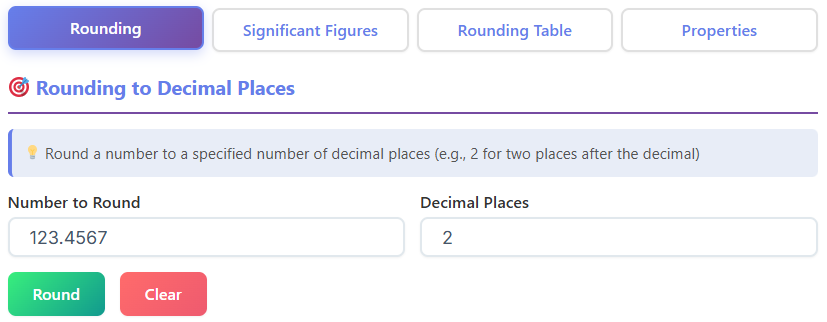
- Rounding Tab: This is the default view. It is where most users will spend their time performing standard operations.
- Significant Figures Tab: Clicking this switches the interface to focus on precision regarding significant digits—crucial for science students.
- Rounding Table Tab: This is a fascinating visual feature that generates a list of rounding outcomes for a single number.
- Properties Tab: Here, the tool educates you on the specific rules being applied, acting almost like a settings or info panel.
The transition between these tabs is seamless. There is no page reload; the content below simply swaps out instantly, making the rounding calculator feel snappy and responsive.
Deep Dive: The Main Rounding Section
Let’s focus on the first and most popular tab: the main Rounding interface. This is where the magic happens for 90% of users.
The Input Fields
Visually, your eyes are drawn to the “Number” input field. It is large, inviting, and clearly labeled. This is where you type the messy number you want to clean up. Next to or below it, there is a “Decimal Places” input. This gives you control. Do you want to round to the nearest whole number? Or perhaps you need the nearest tenth? You simply enter the number of decimal places you desire.
There is often a small help icon or tooltip near these inputs. If you hover over it, it might offer a quick tip, ensuring you never feel lost while using the rounding calculator.
Action Buttons
Once your data is in, you see the primary action buttons: “Round” and “Clear.” The “Round” button is usually highlighted in a primary brand color, calling out to be clicked. The “Clear” button is more subtle, allowing you to reset the rounding calculator without distraction.
The Result Card
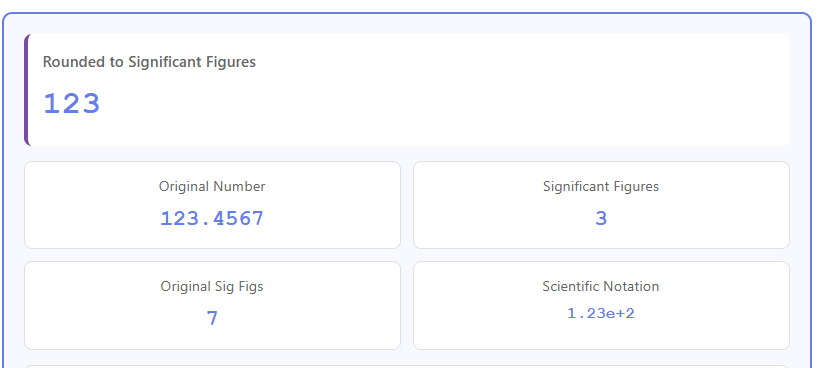
Upon clicking “Round,” the result doesn’t just appear as plain text. It is presented in a beautiful “Result Card.” This card highlights the final, rounded number in a larger font size, making it impossible to miss.
Inside this result area, you often see a “Metrics Grid.” This grid breaks down the operation. It might show the original number, the rounding mode used, and the difference between the original and rounded values.
The Visual Number Line
One of the most standout features of a high-quality rounding calculator is the visual feedback. Often, a number line canvas appears below the result. This graphic visually places your original number on a line between the two nearest rounding options. It shows you visually why the number snapped to the higher or lower value. It bridges the gap between abstract math and visual logic.
How to Use It: Practical Examples
Let’s say you are working on a budget and have a figure like 1,245.6789. You want to simplify this. You enter it into the rounding calculator.
If you set the decimal places to 0, the tool will round to the nearest whole number. The result card pops up showing 1,246. The visual line shows the needle tipping past the halfway mark.
If you change the setting to 1 decimal place, the tool instantly adjusts to round to nearest tenth, giving you 1,245.7.
Perhaps you are doing currency conversion and need precision. You set it to 2 decimal places to round to the nearest hundredth. The rounding calculator returns 1,245.68.
This functionality is very similar to what people look for in a round up calculator, but our tool offers more nuance. A standard round up calculator might always force the number higher (ceiling), whereas this tool follows standard rounding logic unless you specify otherwise in the properties.
Precision Matters: The Significant Figures Section
Clicking the second tab transforms the rounding calculator into a scientific instrument. This section is designed for students and professionals who need to respect the rules of significant figures (sig figs).
Scientific Inputs
Here, the inputs change slightly. You still have a number input, but you might also see options for Scientific Notation. This is critical when dealing with incredibly large or microscopically small numbers in physics or chemistry.
Instead of asking for “decimal places,” this section of the rounding calculator asks for the “Count of Significant Figures.”
The “Steps” Box
A unique feature often found here is the “Steps Box.” Unlike the main tab which just gives the answer, the Significant Figures tab often explains the why. It might highlight the non-zero digits, identify leading or trailing zeros, and explain which digits are being dropped.
For a student struggling with chemistry homework, this feature of the rounding calculator is a lifesaver. It doesn’t just solve the problem; it teaches the concept.
The Result Card for Sig Figs
The result card here mirrors the main tab but focuses on precision. It ensures the final answer has exactly the number of significant digits requested. If you enter 0.004567 and ask for 2 sig figs, the rounding calculator will clearly display 0.0046, perhaps even converting it to scientific notation (4.6 x 10^-3) automatically for clarity.
Seeing the Big Picture: The Rounding Table Section
The third tab, the Rounding Table, is a feature that truly sets this rounding calculator apart from basic handheld devices.
Generating the Table
When you enter a number here—let’s say Pi (3.14159…)—the tool generates a comprehensive table. It doesn’t just give you one answer. It lists the number rounded to 1 decimal place, then 2, then 3, and so on, all in one view.
Visualizing “Nearest Tenth” vs. “Hundredth”
This table allows users to visually compare how accuracy changes. You can look at the row for “1 decimal place” and see the nearest tenth value. The very next row shows the result when you round to the nearest hundredth.
This simultaneous view is incredibly useful for data analysts who need to decide what level of precision is appropriate for their report. They can toggle through the visual data provided by the rounding calculator and make an informed decision on whether to round to the nearest whole number or keep the precision high.
Understanding the Rules: The Rounding Properties Section
The final tab, Properties, is the educational backbone of the rounding calculator. It strips away the inputs and focuses on the logic.
Standard Rounding vs. Floor and Ceiling
Here, the tool visually explains the different “modes” of rounding. Most daily tasks require “Standard Rounding” (often called “round half up”), where 0.5 rounds to the next integer.
However, sometimes you need a round up calculator functionality, known as “Ceiling.” This section visually demonstrates that with Ceiling, 2.1 becomes 3. Conversely, “Floor” makes 2.9 become 2.
Significant Figures Rules
This tab also details the rules used in the Sig Figs tab. It explains how zeros between non-zero digits count, but leading zeros do not. Having this reference built directly into the rounding calculator means you never have to tab away to Wikipedia to double-check a rule.
Real-Life Context
The properties section often uses simple text and icons to relate these rules to real life. It might explain that when buying carpet, you effectively act as a round up calculator because you can’t buy 2.3 rolls of carpet—you must buy 3. The rounding calculator visualizes this “Ceiling” concept perfectly.
🔗 Internal Link 1: Matrix Calculator
🔄
Matrix Calculator
Matrix operations and determinant calculator
Where to Use a Rounding Calculator: Real-World Use Cases
You might think a rounding calculator is a niche tool, but its applications are vast and varied. Let’s look at who is actually using this tool and why.
Engineering and Construction
Engineers deal with precise measurements, but when ordering materials, they cannot order 4.5678 beams of steel. They use the rounding calculator to determine the safe integers for ordering. They often need to round to the nearest whole number to ensure they have enough stock without excessive waste. In this context, the tool frequently functions as a round up calculator to ensure safety margins.
Physics and Chemistry
In the sciences, precision is everything. A physics student calculating the velocity of a particle cannot just chop off decimal points randomly. They use the Significant Figures tab of the rounding calculator to ensure their answer respects the precision of their input data.
🔗 Internal Link 2: Logarithm Calculator
📊
Logarithm Calculator
Calculate logarithms with any base
Finance and Accounting
Accountants live in a world of two decimal places. Every time they calculate tax, interest, or dividends, they are legally required to round to the nearest hundredth. A rounding calculator ensures that these micro-calculations are consistent across thousands of spreadsheet cells, preventing “penny errors” that can ruin a balance sheet.
School Homework and Education
For students learning arithmetic, the concept of “nearest” can be tricky. When a question asks to round to nearest tenth, a student might get confused if the neighbor digit is a 5. This rounding calculator acts as a visual tutor. By using the number line feature, students can see the distance, reinforcing their learning.
🔗 Internal Link 3: Pythagorean Calculator
🔺
Pythagorean Calculator
Solve Pythagorean theorem problems
Data Science
Data scientists cleaning large datasets often need to standardize their inputs. If one sensor records temperature to 5 decimal places and another to 1, the data is messy. Using a rounding calculator helps them standardize all data points—perhaps deciding to round to nearest tenth for consistency across the entire model.
Everyday Math and Conversions
Imagine you are baking and converting grams to ounces. The conversion factor is messy (1 oz = 28.3495 grams). Your kitchen scale only shows whole grams. You use the rounding calculator to round to the nearest whole number so you can actually measure the ingredient.
Similarly, calculating tips at a restaurant is a classic use case. You might calculate 20% of $45.67, which is $9.134. No one leaves $9.134. You use the mental equivalent of a round up calculator to make it a clean $10.00 or simply use the tool to round to the nearest whole number ($9).
Why Reliability Matters
When you use a rounding calculator, you are trusting it with your accuracy. Whether it is your grade on a chemistry test or the structural integrity of a material order, the output needs to be correct.
The beauty of this digital rounding calculator lies in its algorithmic perfection. Humans make fatigue errors. We forget to carry the one. We forget if the rule changes for negative numbers. The rounding calculator does not forget. It applies the same rigorous logic to the first calculation as it does to the millionth.
Furthermore, the ability to handle different types of rounding—such as the nearest tenth or nearest hundredth—without requiring the user to manually shift decimal points is a massive productivity booster. It frees your mind to focus on the problem, not the arithmetic.
Conclusion
In a digital landscape filled with complex tools, the rounding calculator stands out for its elegant simplicity and vital utility. It takes the infinite complexity of numbers and renders them into something human-readable.
From the clean, modern layout with its intuitive tabs to the detailed breakdown of Significant Figures, every aspect of this tool is designed with the user in mind. It helps students visualize the nearest tenth on a number line, assists accountants who need to round to the nearest hundredth, and aids engineers who must round to the nearest whole number.
Whether you are acting as a rigorous scientist or just need a quick round up calculator for your grocery budget, this tool adapts to your needs. It offers speed without sacrificing accuracy, and simplicity without losing detail.
Next time you find yourself staring at a long string of decimals, don’t guess. Don’t stress. Open the rounding calculator, input your data, and let the tool bring clarity to your chaos. It is the smartest, fastest way to make your numbers make sense.
FAQs
What’s the difference between rounding and using a “round up calculator”?
That’s a great question! Standard rounding, which our calculator uses by default, follows the “round half up” rule. This means if the digit you’re looking at is 5 or more, you round the number up. If it’s 4 or less, you round down. For example, 7.4 rounds down to 7, while 7.6 rounds up to 8.
A “round up calculator,” often known as a “ceiling function,” always rounds the number up to the next whole number, no matter what the decimal is (as long as it’s not zero). So, with a ceiling function, both 7.4 and 7.6 would be rounded up to 8. This is useful in situations where you can’t have a fraction of an item, like ordering materials or event tickets.
How do I use the calculator to round to the nearest tenth?
It’s very simple! First, type your full number (for example, 24.86) into the main number input field. Then, look for the input box labeled “Decimal Places” or a similar term. To round to the nearest tenth, you just need to enter the number “1” into that box. This tells the calculator you want to keep one digit after the decimal point. When you click “Round,” the tool will give you the answer, which in this case would be 24.9. You can use this same logic to round to the nearest hundredth (enter “2”) or any other decimal place you need.
When would I need to round to the nearest whole number in real life?
You probably do it more often than you think! A common example is when you’re estimating costs or splitting a bill. If your share of a dinner comes out to $32.78, you might mentally round it to $33 for simplicity. Another great example is when you’re following a recipe that calls for a measurement you can’t easily make, like 1.8 cups of flour—you’d likely just round it to 2 cups. People also use it for tracking fitness goals (e.g., running 4.7 miles is often just called “5 miles”) or for quick budget calculations where exact cents aren’t necessary. Rounding to the nearest whole number helps make numbers easier to manage and discuss in everyday situations.