
Mastering Space: A Guide to the 3D Distance Calculator
Navigating the world of mathematics and engineering often involves understanding the space around us. Whether you are plotting points for a school project, designing a complex structure, or simply curious about spatial relationships, calculating the distance between points is a fundamental skill. A powerful online tool can make this process incredibly simple and intuitive. This is where a versatile 3d distance calculator becomes an indispensable asset for students, professionals, and hobbyists alike. It moves beyond simple measurements, offering a comprehensive suite of features to solve for distance in various dimensions and contexts.
This guide will walk you through the user-friendly interface of a powerful 3d distance calculator, exploring its different functionalities. We will cover everything from basic 2D calculations to complex 3D and geographic distances, showing you how to leverage this tool for your specific needs. Forget manual calculations and complex formulas; this intuitive tool does the heavy lifting for you, providing clear, accurate results instantly.
Calculating in Two Dimensions
Before diving into the third dimension, it’s essential to master the basics. The 2D Distance tab provides a clean and straightforward interface for finding the distance between two points on a flat plane. This is the foundation of many geometric problems and serves as an excellent starting point.
Inputs and Controls
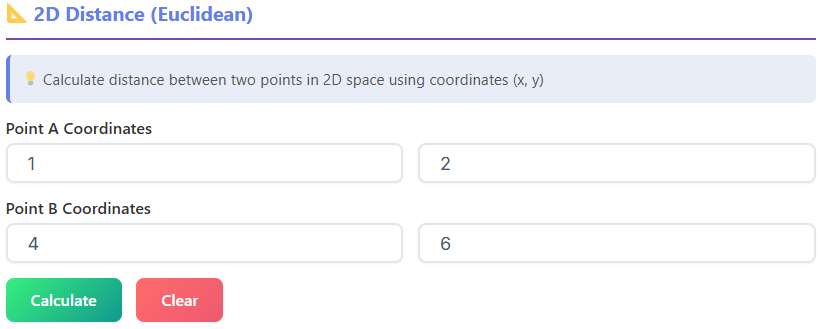
Upon selecting the 2D Distance tab, you are greeted with a simple set of input fields. You will see four boxes labeled x1, y1, x2, and y2. These correspond to the coordinates of your two points, Point A (x1, y1) and Point B (x2, y2). You simply enter the numerical values for each coordinate into its respective field.
Below the input fields, two prominent buttons control the tool’s operation: “Calculate” and “Clear.” Clicking “Calculate” after entering your coordinates will instantly process the information and display the results. The “Clear” button is a handy feature that resets all input fields and results, allowing you to start a new calculation without manually deleting the previous entries.
Understanding the Results
Once you hit “Calculate,” the 3d distance calculator presents the solution in a clear and organized manner. You will see several key metrics:
- Point A & Point B: The tool confirms the coordinates you entered for both points, ensuring there were no input errors.
- Δx (Delta x): This value represents the horizontal difference between the two points (x2 – x1).
- Δy (Delta y): This shows the vertical difference between the two points (y2 – y1).
- Distance: This is the primary result—the straight-line Euclidean distance between Point A and Point B.
Visualizing the Calculation
To further enhance understanding, the tool includes a “Steps” section. This area breaks down the entire calculation process, showing you exactly how the tool arrived at the answer. It displays the values being plugged into the distance formula, making it a great learning aid for students who want to understand the mechanics behind the “distance between two points formula.”
Adjacent to the steps, you’ll find a box displaying the standard 2D distance formula itself. This visual reminder reinforces the mathematical principles at play. Additionally, a dynamic 2D canvas provides a visual representation of your points and the line segment connecting them. This graph helps you intuitively grasp the relationship between the coordinates and the calculated distance. This feature makes the tool more than just a calculator; it’s an interactive learning environment. Using this part of the tool is a simple way to get comfortable before using the more advanced 3d distance calculator features.
Exploring the Third Dimension
The core feature of the tool is its ability to compute distances in three-dimensional space. The 3D Distance tab is designed to handle these calculations with the same ease and clarity as its 2D counterpart. This functionality is crucial for fields like engineering, physics, game development, and architecture, where objects exist in 3D space.
3D Inputs and Controls
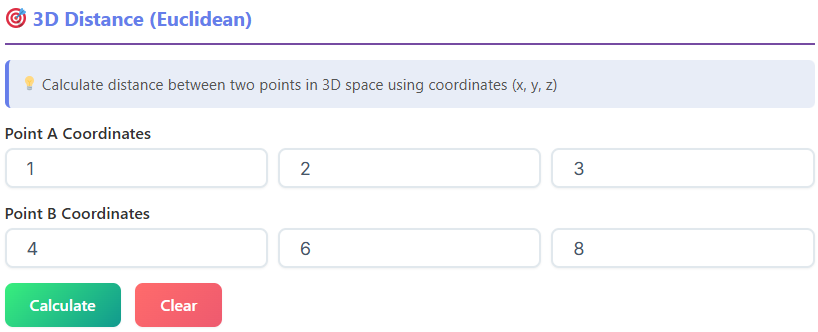
The interface for the 3d distance calculator is a natural extension of the 2D version. You will find input fields for two points, but this time with an added z-coordinate for each. The fields are labeled x1, y1, z1 for Point A, and x2, y2, z2 for Point B. This allows you to define the precise location of each point in three-dimensional space.
Just like the 2D tab, you have “Calculate” and “Clear” buttons to execute the calculation and reset the fields. The intuitive design ensures a smooth transition for users who are already familiar with the 2D interface.
Interpreting 3D Results
After entering your 3D coordinates and clicking “Calculate,” the 3d distance calculator provides a detailed breakdown of the results:
- Point A & Point B: The tool displays the full (x, y, z) coordinates for both points.
- Δx, Δy, & Δz: These values represent the difference along each of the three axes (x, y, and z), giving you a sense of the separation in each dimension.
- 2D Distance: This interesting metric shows the distance between the points as if they were projected onto the 2D (x-y) plane. It essentially ignores the z-axis for a moment.
- 3D Distance: This is the main result—the direct, straight-line distance between the two points in 3D space.
The Power of Visualization
The 3d distance calculator truly shines with its visualization features. The “Steps” section details the calculation, showing how the values of Δx, Δy, and Δz are used to find the final distance. This is particularly helpful for understanding the 3D version of the “distance between two points formula,” which is also displayed in its own dedicated box.
The most impressive feature is the interactive 3D canvas. This visualizer plots your two points in a 3D coordinate system and draws a line connecting them. You can click and drag on the canvas to rotate the entire space, allowing you to view the points and the distance line from any angle. This dynamic visualization makes abstract 3D concepts tangible and easy to understand. It turns a complex calculation into an engaging visual experience, making this 3d distance calculator an exceptional educational tool.
Measuring the Globe: Geographic Distance
For real-world applications like logistics, travel planning, or geography, calculating distance requires more than just Cartesian coordinates. The Geographic Distance tab is specifically designed for this purpose, using latitude and longitude to find the distance between two points on the Earth’s surface. It employs the Haversine formula to account for the planet’s curvature.
Inputs for Latitude and Longitude
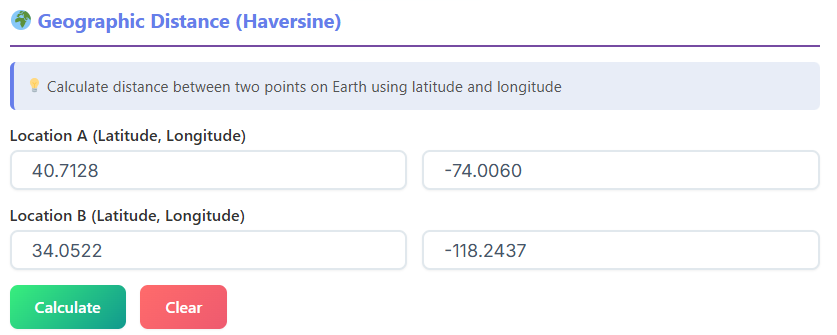
The interface is simple and intuitive. You have four input fields: “Latitude 1,” “Longitude 1” for your first location, and “Latitude 2,” “Longitude 2” for the second. You can enter the coordinates in decimal degrees. The “Calculate” and “Clear” buttons function just as they do in the other tabs.
Getting Results in Multiple Units
When you calculate the geographic distance, the tool provides the result in four different units simultaneously, which is incredibly convenient:
- Kilometers (km)
- Miles (mi)
- Meters (m)
- Feet (ft)
This removes the need for manual unit conversions, making the results immediately useful for a wide range of applications. Whether you’re planning a flight or calculating shipping distances, the tool provides the information in the format you need.
The “Steps” section explains how the Haversine formula is applied using your input coordinates, and the formula itself is displayed for reference. The tool also shows the value it uses for the Earth’s radius, a key component of the calculation. This “distance between two coordinates formula” is essential for accurate geographic measurements.
While calculating distances is a common task, you might find yourself needing other mathematical tools. Exploring a suite of online calculators can significantly streamline your workflow.
📏
Ratio Calculator
Simplify ratios and calculate proportions
Open Calculator →
🔺
Triangle Calculator
Calculate triangle sides, angles, and area
Open Calculator →
⭕
Circle Calculator
Calculate diameter, circumference, and area
Navigating Grids: Manhattan Distance
Not all distance is measured in a straight line. In many real-world scenarios, like navigating a city grid or moving pieces on a chessboard, movement is restricted to a grid. The Manhattan Distance tab is designed to calculate this “taxicab” distance. It measures the path a taxi would take in a city like Manhattan, where it must travel along perpendicular streets.
Inputs and Calculations
The input fields are identical to the 2D Distance tab: x1, y1, x2, and y2. After entering your coordinates and clicking “Calculate,” the tool presents several useful metrics:
- |Δx| and |Δy|: The absolute differences along the x and y axes.
- Manhattan Distance: The primary result, calculated as |Δx| + |Δy|.
- Euclidean Distance: The straight-line distance, provided for comparison.
- Difference: The difference between the Manhattan and Euclidean distances, showing how much longer the grid path is.
The “Steps” section clearly shows how the absolute differences are summed to find the Manhattan distance. A visual canvas plots both the direct Euclidean path and the right-angled Manhattan path, offering a clear visual comparison between the two measurements. This feature perfectly illustrates “how to compute distance between two points” using different methodologies.
Charting a Course: Multiple Points Path
For more complex problems, you may need to calculate the total length of a path that connects multiple points in a sequence. The Multiple Points Path tab provides a dynamic and powerful interface for this exact purpose. It’s a fantastic distance between two points solver for routes, journeys, or any multi-segment path.
Building Your Path
This tab starts with a single point input. You can add more points by clicking the “Add Point” button, which dynamically creates new input fields for the x, y, and z coordinates of each additional point. You can add as many points as you need to define your path. If you make a mistake, each point has a “Remove” button next to it, allowing for easy editing.
Once your path is defined, the “Calculate Path” button computes the total distance. The “Clear All” button removes all points and results, letting you start fresh.
Comprehensive Path Analysis
The results provided by this 3d distance calculator are incredibly thorough:
- Total Distance: The cumulative length of all segments in the path.
- Points: The total number of points you defined.
- Segments: The number of line segments connecting the points.
- Average Segment Length: The average length of a single segment in your path.
- Direct Distance: The straight-line distance from the very first point to the very last point, ignoring all intermediate points.
The “Steps” section provides a segment-by-segment breakdown, showing the distance calculated for each leg of the journey (from Point 1 to Point 2, Point 2 to Point 3, etc.). The 3D canvas visualizes the entire path, plotting all points and connecting them with lines, giving you a complete visual representation of the route you’ve created.
Real-Life Applications of the 3D Distance Calculator
The practical uses for a comprehensive 3d distance calculator are vast and span many fields. Its versatility makes it an essential tool for a wide range of users.
For Students: A student studying geometry, trigonometry, or physics can use this tool to check homework, visualize complex problems, and gain a deeper intuition for spatial concepts. The step-by-step breakdowns and visual canvases transform the 3d distance calculator into an interactive learning aid, making it easier to understand the formulas behind the calculations. It’s an excellent “distance between two points solver” that shows its work.
For Engineers and Architects: Professionals in these fields constantly work with three-dimensional models. An engineer might use the 3d distance calculator to quickly determine the clearance between two components in a CAD model. An architect could use it to verify dimensions or calculate the length of support beams in a virtual design. The Multiple Points Path feature is perfect for calculating the total length of pipes, cables, or structural frameworks.
For Game Developers and 3D Artists: Creating virtual worlds requires precise spatial management. A developer could use the 3d distance calculator to measure sightlines, calculate projectile trajectories, or determine the distance for character interactions. The Manhattan Distance feature could even be used to program AI pathfinding on a grid-based map. The ability to quickly check distances without writing code is a significant time-saver.
For Surveyors and Geographers: The Geographic Distance tab is invaluable for anyone working with real-world mapping. Surveyors can use it for preliminary distance estimations between landmarks. Logisticians can calculate shipping routes, and geographers can measure the distance between cities or geological features with accuracy, thanks to the Haversine formula implementation. The 3d distance calculator provides a quick way to understand spatial relationships on a global scale.
For Hobbyists: Whether you’re a drone enthusiast planning a flight path, a maker designing a 3D-printable object, or a tabletop gamer measuring movement on a custom map, this tool is incredibly useful. The Multiple Points Path feature is ideal for plotting a drone’s journey, while the core 3d distance calculator can help a maker ensure that parts of their design will fit together correctly.
A Tool for Every Dimension
Calculating distance is a foundational concept that appears in countless academic and professional contexts. A well-designed 3d distance calculator demystifies this process, making it accessible to everyone. By offering distinct modules for 2D, 3D, geographic, and Manhattan distances, this tool provides a tailored solution for nearly any scenario. Its intuitive interface, detailed step-by-step breakdowns, and powerful interactive visualizations set it apart from simple input-output calculators.
This is more than just a distance between two points solver; it’s a comprehensive suite for understanding and navigating space. It empowers users to solve complex problems quickly, verify their work accurately, and visualize abstract concepts with ease. Whether you are tackling a homework assignment, designing a skyscraper, or planning a cross-country trip, this powerful 3d distance calculator is the perfect companion to help you measure your world.
FAQs of 3D Distance Calculator
How is the 3D distance different from the 2D distance shown in the results?
The 2D distance is the straight-line distance between your points as if they were plotted on a flat, two-dimensional plane (like a piece of paper), considering only the X and Y coordinates. The 3D distance, however, calculates the true straight-line distance between the points in three-dimensional space by also including the Z coordinate. Think of it as the shortest possible path between two points in a room, not just on the floor.
What is Manhattan Distance and when should I use it?
Manhattan Distance, also known as “taxicab distance,” calculates the distance between two points by moving only along grid lines (like a taxi on a city block), not diagonally. It’s the sum of the horizontal and vertical distances (|Δx| + |Δy|). You should use it for scenarios where movement is restricted to a grid, such as navigating a city map, planning warehouse routes, or measuring moves in certain board games.
Can I calculate the total length of a path with more than two stops?
Yes, absolutely! The “Multiple Points Path” tab is designed for this exact purpose. You can use the “Add Point” button to create a sequence of as many points as you need. After you input all the coordinates for your path, the tool will calculate the total distance of the entire route by adding up the length of each individual segment connecting the points in order.