
Geometry Calculation: The Ultimate Online Tool for 2D and 3D Shapes
Navigating the world of shapes and dimensions can be complex, whether you are a student working on a homework assignment, a teacher preparing a lesson plan, or a professional designer sketching out a new concept. The need for a fast, reliable, and easy-to-use resource for geometry calculation is universal. This is where a powerful online Geometry Calculator becomes an indispensable asset.
It simplifies the process of finding the area, perimeter, volume, and surface area for a wide variety of both 2D and 3D shapes. Forget manual computations and the risk of errors; this tool is designed to provide instant and accurate answers, streamlining any project that requires precise geometric measurements. It is built to handle every essential geometry calculation with clarity and efficiency, making it the go-to resource for anyone needing dependable results.
Calculator Header & First Impression
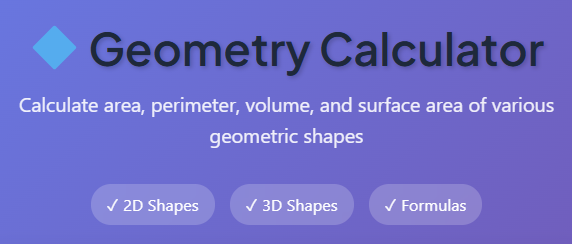
The moment the page loads, the tool makes a striking first impression that inspires confidence. Users are greeted by a clean and modern interface with a subtle, professional gradient background that is easy on the eyes. Centered at the top of the page is the clear and prominent title, “🔷 Geometry Calculator,” immediately confirming you have arrived at the right place for your mathematical needs.
Below the main title, a concise subtitle explains the tool’s core function: “Calculate area, perimeter, volume, and more for 2D & 3D shapes.” This simple statement removes any ambiguity and sets clear expectations. Directly beneath this description are three distinct badges: “2D Shapes,” “3D Shapes,” and “Formulas.” These badges act as quick navigational signposts, letting users know at a glance the full scope of the calculator’s capabilities. This thoughtful header design provides immediate clarity, assuring users that they have found a comprehensive and well-organized tool. The layout instills a sense of trust and competence, crucial for anyone seeking a reliable solution for their geometry calculation tasks.
Shape Selector Panel (Tabs + Shape Grid)
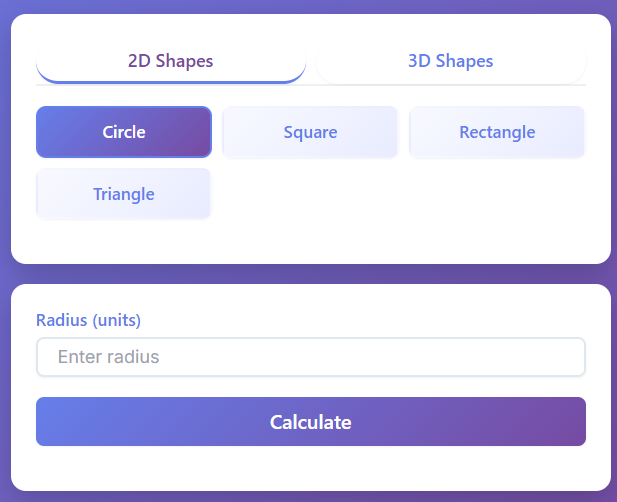
Just below the header, the main interactive part of the tool begins with a beautifully designed shape selector panel. This section is ingeniously split into two user-friendly components: a tab system and a corresponding shape grid.
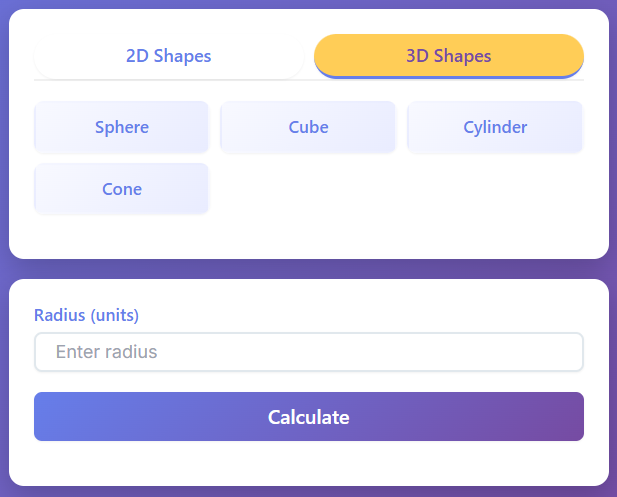
The tabs at the top of this panel are clearly labeled “2D Shapes” and “3D Shapes.” This primary division allows users to instantly filter the type of object they are working with. The active tab is highlighted with a distinct color and a subtle underline, providing clear visual feedback on the current selection. Switching between the tabs is a seamless experience. A single click on the inactive tab smoothly transitions the view, instantly revealing the grid of shapes associated with that dimension. This fluid user experience prevents confusion and allows for quick exploration of all available options without any jarring page reloads.
When the “2D Shapes” tab is active, a grid of familiar two-dimensional figures appears. This includes buttons for “Circle,” “Square,” “Rectangle,” and “Triangle.” Each shape is represented by a simple icon and its name, making identification effortless. As the user’s mouse hovers over a shape button, it subtly highlights, indicating it’s a clickable element. Upon selection, the chosen shape’s button becomes more prominently highlighted, confirming the choice.
The grid itself is responsive; on smaller screens, like a mobile phone, the buttons automatically rearrange themselves into a vertical stack, ensuring the interface remains intuitive and easy to navigate regardless of the device. This adaptability is key for on-the-go geometry calculation needs.
Clicking the “3D Shapes” tab reveals a different set of options, including “Sphere,” “Cube,” “Cylinder,” and “Cone.” Similar to the 2D grid, each button features a clean icon and a clear label. The interaction logic here ensures that only one shape can be active at a time. Selecting a new shape, like the “Cube,” will automatically deselect any previously chosen one, such as the “Sphere.” This focused approach guides the user step-by-step through the geometry calculation process, preventing the clutter of multiple selections and keeping the interface tidy and focused on the current task.
Input Panel (Dynamic Form Rendering)
Once a shape is selected from the grid, the input panel located to the right of the selector dynamically comes to life. This is one of the most powerful features of the calculator, as it only displays the input fields relevant to the chosen shape. This “smart” rendering eliminates any potential confusion by hiding unnecessary options and presenting a clean, focused form.
For example, if you select “Circle,” a single input box appears, labeled “Radius,” with placeholder text like “Enter radius” to guide you. If you switch to the “Rectangle,” the panel instantly updates to show two input boxes: one for “Length” and another for “Width.” This dynamic behavior is consistent across all shapes:
- Square: A single input for “Side.”
- Triangle: Two inputs for “Base” and “Height.”
- Cylinder or Cone: Two inputs for “Radius” and “Height.”
Each input field is clearly marked with a descriptive label, ensuring you know exactly what value to enter. The placeholder text within each box offers an additional layer of guidance. The user experience of interacting with these fields is polished; as you click into an input box, it gains a subtle glow or border animation, signaling that it is active and ready to receive your numbers. This visual feedback makes the process of entering data feel responsive and engaging, transforming a potentially mundane task into a smooth interaction. It’s this attention to detail that elevates the entire geometry calculation experience.
Calculate Button Interaction
Positioned directly below the dynamic input panel is a large, inviting “Calculate” button. Its design is impossible to miss, featuring the same attractive gradient as the header, which makes it visually pop from the rest of the interface. This button serves as the primary call to action, the final step before the magic happens.
When the user’s cursor hovers over the button, a satisfying interactive effect is triggered. The button might subtly grow in size or its gradient might shift, providing clear feedback that it is ready to be pressed. This hover effect is more than just decoration; it guides the user’s eye and confirms their next logical action.
Upon clicking, a brief press-down animation occurs, giving a tangible sense of response. This immediate feedback assures the user that their command has been registered and that the geometry calculation is underway. The entire interaction is designed to feel intuitive and encouraging, seamlessly guiding users from entering their data to initiating the final computation without a moment of hesitation. It’s a small but crucial detail that enhances the overall feeling of control and efficiency.
Results Panel
After clicking the “Calculate” button, the results of the geometry calculation appear instantly in a dedicated panel on the right side of the screen. This area is designed for maximum readability and educational value, presenting the computed values and the underlying formulas with exceptional clarity.
The results are displayed in a series of clean “Result Cards.” Each card has a crisp white background that contrasts nicely with the rest of the interface, making the information stand out. The layout of each card is simple and effective: the label for the calculated property (e.g., “Area,” “Volume”) is on the left, and the corresponding numerical value is aligned to the right.
The tool automatically appends the correct units to the results. Furthermore, it intelligently displays squared units (like cm²) for area calculations and cubed units (like m³) for volume calculations, reinforcing correct mathematical notation. This automated formatting ensures every geometry calculation is presented professionally and accurately.
Below the result cards, a distinct “Formula Box” provides additional educational context. This section is enclosed by a dashed border and topped with the heading “📐 Formulas Used.” Inside this box, the exact formulas used to perform the geometry calculation are displayed in standard mathematical format.
For instance, after calculating a circle’s properties, you will see the formulas for area (A = πr²) and circumference (C = 2πr). This feature is invaluable for students trying to understand the principles behind the numbers. It transforms the tool from a simple answer-finder into a genuine learning aid, perfect for anyone studying shape formulas area or seeking a deeper understanding of geometry area equations. It’s also a handy reference, eliminating the need to search elsewhere for the correct formulas for 2D shapes calc 2 or other coursework.
2D Shape Output Experience
The user flow for calculating the properties of 2D shapes is incredibly straightforward and rewarding. Let’s walk through the experience for each of the primary two-dimensional figures available.
When you select the “Circle” and enter a radius, clicking “Calculate” instantly populates the results panel. You are presented with three distinct result cards: “Area,” “Circumference,” and “Diameter.” The values are neatly displayed, and the formula box below shows the exact equations used for the calculation. This immediate feedback loop makes performing a complex geometry calculation feel effortless.
Next, consider the “Square.” After entering the length of one side, the tool computes and displays the “Area,” “Perimeter,” and the “Diagonal” of the square. The diagonal calculation is a particularly useful feature, saving you an extra step of applying the Pythagorean theorem manually. The process remains consistent and predictable, reinforcing the tool’s reliability. Each geometry calculation is executed flawlessly, providing a full set of relevant properties.
For a “Rectangle,” the process is just as simple. You input the length and width, and the calculator returns the “Area,” “Perimeter,” and “Diagonal.” The clear presentation of these three key metrics gives you a complete overview of the rectangle’s properties at a glance.
Finally, for a “Triangle,” you provide the “Base” and “Height.” The tool swiftly calculates the “Area.” To avoid any ambiguity, the results panel also confirms the base and height values you entered, ensuring you can cross-reference the output with your input. This thoughtful confirmation step adds another layer of confidence to the geometry calculation process, making sure your results are based on the correct dimensions. The entire 2D experience is designed for speed, accuracy, and clarity.
3D Shape Output Experience
The experience of performing a geometry calculation for 3D shapes is just as refined and intuitive as it is for their 2D counterparts. The tool seamlessly handles the added complexity of volume and surface area, presenting the information in a way that is easy to digest.
If you select the “Sphere,” you only need to provide the radius. Upon calculation, the results panel displays the “Volume,” “Surface Area,” and “Diameter.” Seeing these three core properties appear instantly is incredibly powerful, especially for students or professionals who need to quickly visualize the full scope of a spherical object. The corresponding formulas for a sphere’s volume and surface area are shown in the formula box, offering a great learning opportunity.
For a “Cube,” the process is similarly streamlined. By entering the length of a single side, you get immediate results for the “Volume,” total “Surface Area,” and the “Space Diagonal” (the diagonal that passes through the cube’s interior). This advanced geometry calculation is often tricky to do by hand, but the tool provides it instantly, showcasing its advanced capabilities.
When working with a “Cylinder,” you input the radius and height. The calculator then delivers a comprehensive output, including the “Volume,” total “Surface Area,” and “Lateral Surface Area” (the area of the curved side). Distinguishing between total and lateral surface area is a common point of confusion in geometry, and the tool clarifies this by presenting them as separate, clearly labeled results. This level of detail makes the tool exceptionally useful for both academic and practical applications.
Lastly, the “Cone” follows the same user-friendly pattern. After entering the radius and height, the results panel is populated with the “Volume,” total “Surface Area,” and the “Slant Height.” The automatic calculation of the slant height is another example of how this tool simplifies a multi-step geometry calculation into a single click. The associated formulas for each 3D shape appear automatically in the formula box, reinforcing the mathematical concepts behind the visual objects.
Why This Geometry Calculator Is Useful
This online Geometry Calculator stands out not just for what it does, but for how it does it. Its usefulness extends across a wide range of users, from students to seasoned professionals, all thanks to a carefully crafted set of benefits.
First and foremost is the benefit of instant results. In any field where time is valuable, waiting for manual calculations or wrestling with clunky software is a significant drain on productivity. This tool eliminates that friction entirely. You enter your dimensions, click a button, and the answers appear immediately. This speed is crucial for students on a deadline, designers iterating on plans, or engineers needing a quick verification.
The clean and intuitive user interface is another major advantage. The tool avoids the clutter and confusing menus that plague many other online calculators. Its logical flow, from shape selection to data input to results, means there is virtually no learning curve.
Anyone can start performing an accurate geometry calculation within seconds of landing on the page. This simplicity encourages use and reduces the cognitive load on the user, allowing them to focus on their project rather than on figuring out the tool. Even a search for a “geometric calculation crossword clue” might lead someone here, and they would find the tool just as easy to use.
The broad applicability of the calculator makes it a versatile resource. Students and teachers can use it as a learning aid to supplement classroom instruction on topics like geometry area equations and shape formulas area.
Designers, architects, and engineers can use it for practical, on-the-job calculations, ensuring accuracy in their plans and models. Even hobbyists and DIY enthusiasts will find it invaluable for their projects. The tool successfully serves this diverse audience by being both powerful and accessible.
Ultimately, the core benefit is its ability to provide a consistently accurate geometry calculation for both 2D and 3D shapes. By automating the math, it removes the potential for human error, ensuring that every result is correct. This reliability is the foundation of its value, making it an essential tool for anyone who works with shapes and dimensions.
➕ Basic Calculator
Simple calculator for basic arithmetic operations
[Open Calculator →]
√ Square Root Calculator
Calculate square roots and nth roots of numbers
[Open Calculator →]
📊 Statistics Calculator
Calculate mean, median, mode, and standard deviation
[Open Calculator →]
Conclusion
In a world driven by data and precision, having the right tools at your disposal is paramount. A reliable and efficient geometry calculation tool is no longer a luxury but a fundamental necessity for a vast array of individuals. For students, it serves as a dynamic educational partner, helping to solidify their understanding of core mathematical principles. For teachers, it is a powerful resource for creating engaging lesson plans and demonstrating concepts visually.
For architects, engineers, and designers, it is a daily workhorse that ensures precision and saves valuable time. By offering a seamless user experience, instant results, and unwavering accuracy, this online Geometry Calculator proves its essential role. It empowers users to tackle geometric challenges with confidence, making it an indispensable resource for anyone engaged in the art and science of shapes.
FAQs
Can I use this tool if I’m not a math expert?
Absolutely! This tool was designed for everyone, regardless of their math background. The interface is clean and straightforward, guiding you through each step of the geometry calculation process. You simply select a shape, enter the required dimensions like length or radius, and the calculator instantly provides the answers. It’s perfect for students needing help with homework, teachers creating lesson plans, or even professionals who need a quick and accurate geometry calculation on the job.
Does the calculator show the formulas it uses?
Yes, it does. One of the best features is the “Formulas Used” box that appears with your results. After performing a geometry calculation, the tool displays the exact geometry area equations or volume formulas used to get the answer. This is incredibly helpful for understanding how the results were derived and is an excellent way to learn important shape formulas area for both 2D and 3D figures.
What types of calculations can this tool perform?
This geometry calculator can handle a wide variety of calculations for both two-dimensional and three-dimensional shapes. For 2D shapes like circles and squares, it calculates area, perimeter, and diagonal lengths. For 3D shapes like spheres and cubes, it provides volume, surface area, and other key properties. It’s a comprehensive resource for almost any standard geometry calculation you might need.