The Ultimate Guide to Using a Data Storage Converter
In the digital landscape, managing space is everything. Whether you are an IT professional architecting a massive server farm, a content creator managing terabytes of video footage, or simply a smartphone user wondering why your photos won’t back up, understanding digital capacity is crucial. The units we use to measure this capacity—from tiny bits and bytes to massive petabytes—can be confusing. This is where a data storage converter becomes an indispensable utility for accurate translation between these complex measurements.
Navigating the world of digital storage requires precision. A mistake in calculation when purchasing cloud backup or partitioning a hard drive can lead to wasted money or, worse, data loss due to insufficient space. By utilizing a reliable data storage converter, users can effortlessly bridge the gap between different measuring standards, such as the often-confused binary (GiB) and decimal (GB) systems. This guide explores every facet of using our specialized tool, designed to make these conversions seamless, accurate, and instant.
Why You Need a Data Storage Converter
A data storage converter is not just a calculator; it is a translator for the language of computers. At the most basic level, computers process information in binary code (zeros and ones), but humans prefer to count in decimals (base ten). This discrepancy has led to two distinct systems of measurement that often overlap and confuse users. Having a dedicated tool to handle these translations ensures that you are speaking the same language as your hardware and software.
Importance in IT and Server Management
For Information Technology professionals, precision is not a luxury; it is a requirement. When provisioning storage for virtual machines or databases, an administrator must know exactly how much physical disk space correlates to the requested virtual space. Using a data storage converter eliminates the guesswork involved in mental math, especially when dealing with the nuanced differences between a Terabyte and a Tebibyte. These small discrepancies compound over large data sets, potentially leading to significant reporting errors in server audits.
Role in Cloud Storage Planning
Cloud services often bill by the Gigabyte or Terabyte. However, the files you upload—backups, archives, raw data—might be measured by your local operating system in completely different units. A data storage converter empowers businesses and individuals to audit their cloud usage effectively. By converting local file sizes into the exact units used by cloud providers, you can predict costs more accurately and avoid hitting unexpected storage caps that halt productivity.
Essential for File Management and Transfer
Daily computer usage involves constant file movement. You might be transferring photos from a camera SD card to a laptop, or moving heavy project files to an external SSD. If your drive has 500 MB remaining, and you try to move a file listed as 0.6 GB, will it fit? A quick check with a data storage converter resolves this ambiguity immediately. It helps users manage their digital clutter by providing clear, comparable metrics for every file and folder.
Header & Visual Overview
When you first land on the tool page, you are greeted by a clean, modern interface designed for efficiency. The header immediately identifies the utility, ensuring you know you are in the right place to perform conversions. This visual clarity is vital for professionals who need to perform rapid calculations without wading through unnecessary text or distractions.
Feature Badges and Design
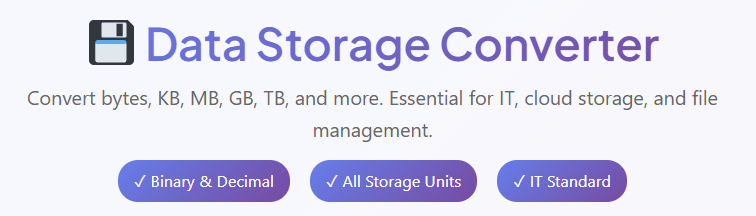
Below the main title, you will notice several feature badges. These are not just decorative; they indicate the robust capabilities of the data storage converter engine running in the browser. You will see badges for “Binary & Decimal,” confirming that the tool handles both standard consumer units (like MB and GB) and technical IEC units (like MiB and GiB). Another badge highlights “All Storage Units,” reassuring the user that whether they are calculating tiny bits or massive yottabytes, the tool is equipped to handle it. The “IT Standard” and “Modern UI” badges reflect our commitment to professional-grade accuracy wrapped in a user-friendly aesthetic.
The design philosophy focuses on high contrast and readability. In a dimly lit server room or during late-night coding sessions, eye strain is a real concern. The interface uses clear typography and ample whitespace to ensure that inputting data and reading results is effortless.
Precision Selector

One of the most powerful features of this data storage converter is the Precision Selector. Located prominently near the top of the interaction area, this dropdown menu allows you to tailor the output to your specific needs. While a casual user might only need to know that a file is roughly “5 Gigabytes,” a developer might need to know it is exactly “5.1246 Gigabytes” to ensure it fits within a specific memory allocation.
The Options: 2, 4, 6, or 8 Decimals
The dropdown offers four distinct levels of granularity: 2, 4, 6, and 8 decimal places.
- 2 Decimals: Perfect for quick estimates and general file management.
- 4 Decimals: Standard for most IT reporting and invoicing requirements.
- 6 Decimals: Useful for scientific data and high-precision engineering tasks.
- 8 Decimals: The maximum setting, ideal for granular debugging and deep technical analysis.
Why Precision Matters
In storage calculations, rounding errors can be dangerous. If you round down a file size when calculating transfer times or drive capacity, you might end up with a “disk full” error mid-process. By adjusting the precision on the data storage converter, you ensure that the numbers you are working with reflect the reality of the data, rather than a convenient approximation. This level of control is what separates a professional tool from a basic widget.
From Input Section
The core interaction begins in the “From” input section. This is where you define the value you currently have. We have designed this section to be as intuitive as possible, reducing the friction between having a question about data size and getting an answer.

The Numeric Input Field
The primary input field is a text box designed to accept numeric values. It supports standard formatting, allowing you to paste values directly from other applications, such as a file explorer properties window or a cloud dashboard. The field is responsive, instantly triggering the calculation engine as you type, ensuring that the data storage converter feels snappy and reactive. There is no need to press a “calculate” button; the tool works as fast as you do.
The “From” Unit Dropdown
Next to the input field is the unit selector. This comprehensive dropdown menu houses every relevant unit of measurement used in digital computing. It is categorized to help you distinguish between the two major systems:
- Decimal Units (Base 10): These are the units most consumers are familiar with, often used by hard drive manufacturers and in marketing.
- Byte (B)
- Kilobyte (KB)
- Megabyte (MB)
- Gigabyte (GB)
- Terabyte (TB)
- Petabyte (PB)
- Binary Units (Base 2): These are the units often used by operating systems (like Windows) and in technical documentation.
- Kibibyte (KiB)
- Mebibyte (MiB)
- Gibibyte (GiB)
- Tebibyte (TiB)
- Fundamental Units:
- Bit (b) – The building block of all digital data.
By selecting the correct starting unit, you ensure the data storage converter establishes the correct baseline for the calculation. This distinction is critical because 1 Kilobyte (1000 bytes) is not the same as 1 Kibibyte (1024 bytes).
To Result Section
Directly opposite or below the input section (depending on your screen width) lies the Result Section. This area is dedicated to displaying the answer to your query with absolute clarity.
Read-Only Result Field
The result field is a read-only display that updates in real-time. We have designed it to be visually distinct from the input field, often using a slightly different background shade or border to indicate that this is the output. This prevents confusion, ensuring the user knows exactly which number is the source and which is the conversion. You can easily copy the value from this field to your clipboard for use in emails, reports, or configuration files.
The “To” Unit Selector
Just like the input section, the result section features a comprehensive unit selector. This allows you to choose what you want to convert into. Do you have a value in Megabytes that you need to express in Bits for a network speed calculation? Or perhaps you need to convert Terabytes to Gigabytes to compare drive sizes? The data storage converter makes these transformations effortless. You can switch the target unit as many times as you like, and the result field will instantly recalculate to reflect the new selection.
Instant Result Updates
The responsiveness of the tool is a key feature. As you type numbers in the “From” field or change units in either dropdown, the result updates immediately. This creates a feedback loop that helps users develop an intuitive sense of scale. Seeing the numbers shift instantly as you toggle between GB and GiB visually demonstrates the difference between the two standards, making the data storage converter an educational tool as well as a functional one.
Speaking of accurate measurements, time is another critical factor in IT management. If you need to calculate uptime or transfer durations, our tool suite has you covered.
Time Unit Converter
Convert seconds, minutes, hours, and days effortlessly to plan project timelines accurately.
Open Converter →
Swap Units Button
Located centrally between the “From” and “To” sections is the Swap Units button, represented by a bidirectional arrow icon. While it may seem like a small feature, it is a significant productivity booster for power users.
Functionality and Time-Saving
Clicking the Swap button instantly reverses the configuration. The unit selected in the “From” dropdown moves to the “To” dropdown, and vice versa. The value in the result field is moved to the input field (or recalculated based on the logic of the swap). This is incredibly useful when you need to perform a reverse check. For example, if you just used the data storage converter to see how many GB are in 5000 MB, you can hit swap to instantly see how many MB are in 5 GB.
Real-World Usefulness
Imagine you are comparing two hard drives. One is listed as 4 TB, and the other is listed as 4,000,000 MB. You set up the conversion one way to compare them. Suddenly, you need to check a third drive listed in GB. Instead of manually re-selecting everything, the Swap button allows you to toggle back and forth rapidly, keeping your workflow fluid and uninterrupted.
Quick Reference Section
Below the main calculator interface, you will find the Quick Reference Section. This area is designed for users who need “at a glance” information without typing in specific values. It features a series of static conversion cards or a table that displays common values.
Quick Conversion Cards
These cards display standard benchmarks that are frequently used in the industry. You might see cards showing:
- 1 GB = 1024 MB
- 1 TB = 1000 GB
- 1 Byte = 8 Bits
This serves as a cheat sheet for students, technicians, and anyone who needs a sanity check on their mental math. It reinforces the standard relationships between units.
Multiple Unit Comparison
The Quick Reference section often provides a row of comparisons for a single base unit. For instance, it might show “1 Gigabyte” converted simultaneously into MB, KB, and Bytes. This holistic view is valuable for understanding the magnitude of data. Seeing that 1 Gigabyte is over a billion bytes helps contextualize the scale of modern storage, a perspective that a data storage converter is uniquely positioned to provide.
Benefits for Professionals
For IT professionals writing documentation or technical writers explaining specs, this section is a goldmine. You can verify standard conversions instantly without interacting with the input fields. It validates the data you are putting into reports and proposals, ensuring high standards of accuracy are maintained across your documentation.
In technical fields, signal processing often requires similar conversions. Understanding the frequency of data transmission is key to optimizing bandwidth.
Frequency Converter
Convert Hz, kHz, MHz, and GHz to align your hardware specifications with network requirements.
Open Converter →
Conversion History
Data analysis is rarely a one-off task. You often need to convert a series of file sizes or drive capacities in a row. The Conversion History section, located near the bottom of the tool interface, tracks your activity to enhance your workflow.
Recent Conversions List
This list automatically populates with your most recent actions. Every time you complete a calculation or change a unit, the data storage converter logs the “From” value/unit and the “To” value/unit. This creates a breadcrumb trail of your session. If you are summing up the total size of ten different video files to see if they fit on a USB stick, you can convert them one by one and then refer to the history list to add up the results.
Auto-Saved History
The history feature is designed to be persistent within your session. You don’t need to manually click “save”; it happens in the background. This auto-save functionality prevents the frustration of forgetting a number the moment you navigate away or switch tabs. It acts as a temporary memory buffer for the user.
Clear History and Productivity
Of course, privacy and clutter control are important. A “Clear History” button is readily available to wipe the list clean. This allows you to start a fresh set of calculations for a new project without getting confused by old data. The combination of automatic logging and manual clearing makes the data storage converter a flexible workspace that adapts to complex, multi-step tasks.
Real-Life Use Cases
To truly understand the value of this tool, let’s look at specific scenarios where a data storage converter moves from being a convenience to a necessity.
Scenario 1: Cloud Storage Planning
Imagine you are an IT Manager for a mid-sized architecture firm. You are migrating your on-premise file server to a cloud provider like AWS or Azure. Your local server reports that you have 15 TiB (Tebibytes) of data. However, the cloud provider’s pricing tier is based on TB (Terabytes).
If you assume 15 TiB is the same as 15 TB, you are in for a shock. 15 TiB is actually approximately 16.49 TB. That difference of nearly 1.5 TB could push you into a higher pricing tier or result in significant overage charges. By using a data storage converter, you can input “15” and select “TiB”, then convert to “TB”. The tool reveals the exact decimal figure, allowing you to budget precisely for 16.5 TB of storage, ensuring your financial projections are accurate and your migration succeeds without hidden costs.
Scenario 2: File Upload Size Checking
You are a web developer building a file upload portal for a client. The server configuration has a strict upload limit defined in bytes (e.g., 10485760 bytes). Your client wants to know what to write on the front-end help text: “Max file size is 10 MB.”
Is that accurate? You open the data storage converter. You input “10” and select “MB” (Megabytes). You convert it to Bytes. The result is 10,000,000 bytes. However, you suspect the server uses binary megabytes. You switch the input to “MiB” (Mebibytes). 10 MiB converts to 10,485,760 bytes. You realize that the server limit is actually exactly 10 MiB. Using the tool, you clarified a technical ambiguity that could have caused users to experience failed uploads if they tried to upload a true 10.4 MB file. The converter ensured the UI text matches the backend reality.
Just as storage limits are critical, physical constraints in server cooling systems often involve pressure metrics. Maintaining the right environment is vital for hardware longevity.
Pressure Converter
Convert PSI, bar, Pascal, and atm to monitor and maintain optimal server room cooling pressures.
Open Converter →
Scenario 3: IT and Server Management
A system administrator is partitioning a new RAID array. The RAID controller software requests the partition size in Megabytes (MB), but the drive manufacturer lists the total capacity in Gigabytes (GB). The admin wants to create three equal partitions on a 6 TB drive.
First, they use the data storage converter to convert 6 TB into MB. They input “6”, select “TB”, and convert to “MB”. The tool instantly shows 6,000,000 MB. They divide this by three to get 2,000,000 MB per partition. However, they remember the drive might be recognized as TiB by the OS. They use the tool again to convert 6 TB (decimal) to TiB (binary) to see how the operating system will report the drive size (approx 5.45 TiB). This insight allows them to set expectations for the client, explaining why the “6 TB” drive shows up as smaller in Windows, all backed by the clear data from the converter.
Binary vs. Decimal: The Core Confusion
The most common reason users seek out a data storage converter is the confusion between binary and decimal systems. This section dives deeper into why this distinction exists and how the tool solves it.
The Marketing vs. Engineering Gap
Storage manufacturers (selling hard drives, SSDs, USB sticks) almost universally use the Decimal system. To them, 1 Kilobyte is 1,000 bytes. This makes the numbers look larger and cleaner on the packaging. 1 TB equals 1,000,000,000,000 bytes.
Operating systems, particularly Windows and legacy systems, calculate using the Binary system. To them, 1 Kibibyte (often still labeled as “KB” in Windows) is 1,024 bytes. Because 1024 is larger than 1000, the total count of “units” drops. This is why a 1 TB hard drive appears to have only ~931 GB in Windows.
How the Converter Bridges the Gap
Our data storage converter explicitly separates these units. By offering “KB” and “KiB” as distinct options, we remove the ambiguity. If you select “GB” (Gigabyte), we calculate using base 10 (1000). If you select “GiB” (Gibibyte), we calculate using base 2 (1024). This strict adherence to standards allows users to troubleshoot “missing space” on their drives. You can enter the manufacturer’s byte count and convert it to GiB to see exactly what Windows will report.
Maximizing Your Workflow
Efficiency is the ultimate goal of any utility. To get the most out of the data storage converter, consider these workflow tips.
Keyboard Shortcuts and Navigation
The tool is optimized for keyboard users. You can Tab through the fields. Tab into the input, type your number, Tab to the unit dropdown, use arrow keys to select, and Tab to the result. This allows for high-speed data entry without ever touching the mouse. For professionals processing batches of data, this ergonomic design reduces fatigue and speeds up the conversion process.
Cross-Platform Accessibility
Whether you are on a desktop workstation, a laptop in a cafe, or a tablet in a server room, the data storage converter is fully responsive. The layout adapts to your screen size, ensuring that the input fields and result text remain legible and accessible. This reliability means you can bookmark the tool and trust it to function correctly regardless of the device you have on hand during a crisis.
Conclusion
In the modern digital ecosystem, accuracy is paramount. Whether you are managing personal files or overseeing enterprise-grade data centers, the ability to interpret and translate storage metrics is a fundamental skill. The data storage converter serves as the ultimate bridge between the various standards of digital measurement. It eliminates the confusion of binary versus decimal calculations, provides instant clarity on file transfer sizes, and ensures that cloud billing is based on precise data rather than rough estimates.
By offering a clean, user-centric interface with features like the Precision Selector, Conversion History, and distinct unit badges, this tool elevates a simple calculation into a professional workflow asset. It is not just about changing numbers; it is about understanding the space we inhabit in the digital world. Next time you are faced with a cryptic drive capacity or a confusing file size limit, remember that the solution is just a few clicks away with a reliable data storage converter. Bookmark it, use it, and trust that your data calculations are precise, professional, and error-free.
FAQs
Why does my hard drive appear smaller on my computer than on the box?
This discrepancy occurs because storage manufacturers and computers often speak different “languages.” Manufacturers typically use the decimal system (where 1 Kilobyte = 1,000 bytes), making the numbers look cleaner and larger. However, computers process data using the binary system (where 1 Kilobyte = 1,024 bytes). A data storage converter helps you translate the manufacturer’s listed capacity into the actual binary space your computer will recognize, clarifying where that “missing” space went.
What is the difference between MB (Megabyte) and MiB (Mebibyte)?
While they are often used interchangeably in casual conversation, they are technically different standards.
MB (Megabyte) is a decimal unit equal to 1,000,000 bytes. It is the standard used for networking speeds and storage packaging.
MiB (Mebibyte) is a binary unit equal to 1,048,576 bytes. This is the standard most operating systems use to report file sizes.
Using a converter ensures you are calculating with the correct standard for your specific needs, preventing errors in data management.
When should I use Bits (b) instead of Bytes (B)?
The distinction is crucial depending on what you are measuring. Bytes (capital B) are generally used to measure data storage, such as the size of a file or the capacity of a hard drive. Bits (lowercase b) are typically used to measure data transfer speeds, like your internet connection speed (e.g., 100 Mbps). A data storage converter can quickly translate between the two, helping you understand, for example, how long a 5 GB file will take to download on a 50 Mbps connection.